hi! I am new to brainstorm. I want to use a three-layer spherical shell to simulate the EEG forward problem. I first created three simple spherical shells as the brain, skull, and scalp, as shown in Figure 1. However, I don't know how to create the corresponding head model in the area of Figure 2. If I just manually input the radii, this model is not linked to the spherical shells I created, and the source localization I set will not be mapped onto the head model. What should I do? I really hope to get your help.
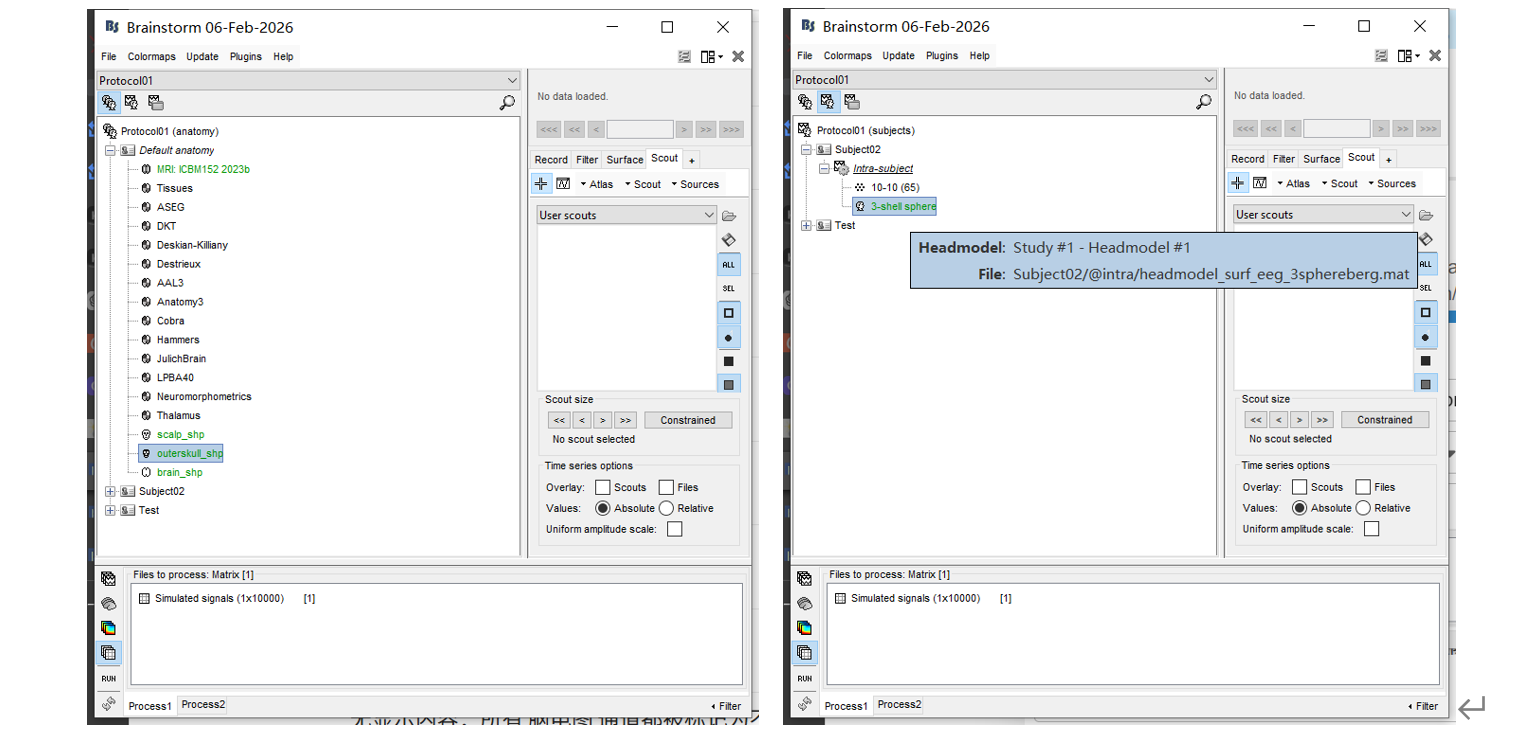

Those are Freesurfer registration sphere: https://neuroimage.usc.edu/brainstorm/Tutorials/LabelFreeSurfer#Registered_spheres
edit the center and radius like this, same as my scalp_sph:

but the scope i marked on the brain_sph disappear on my headmodel…
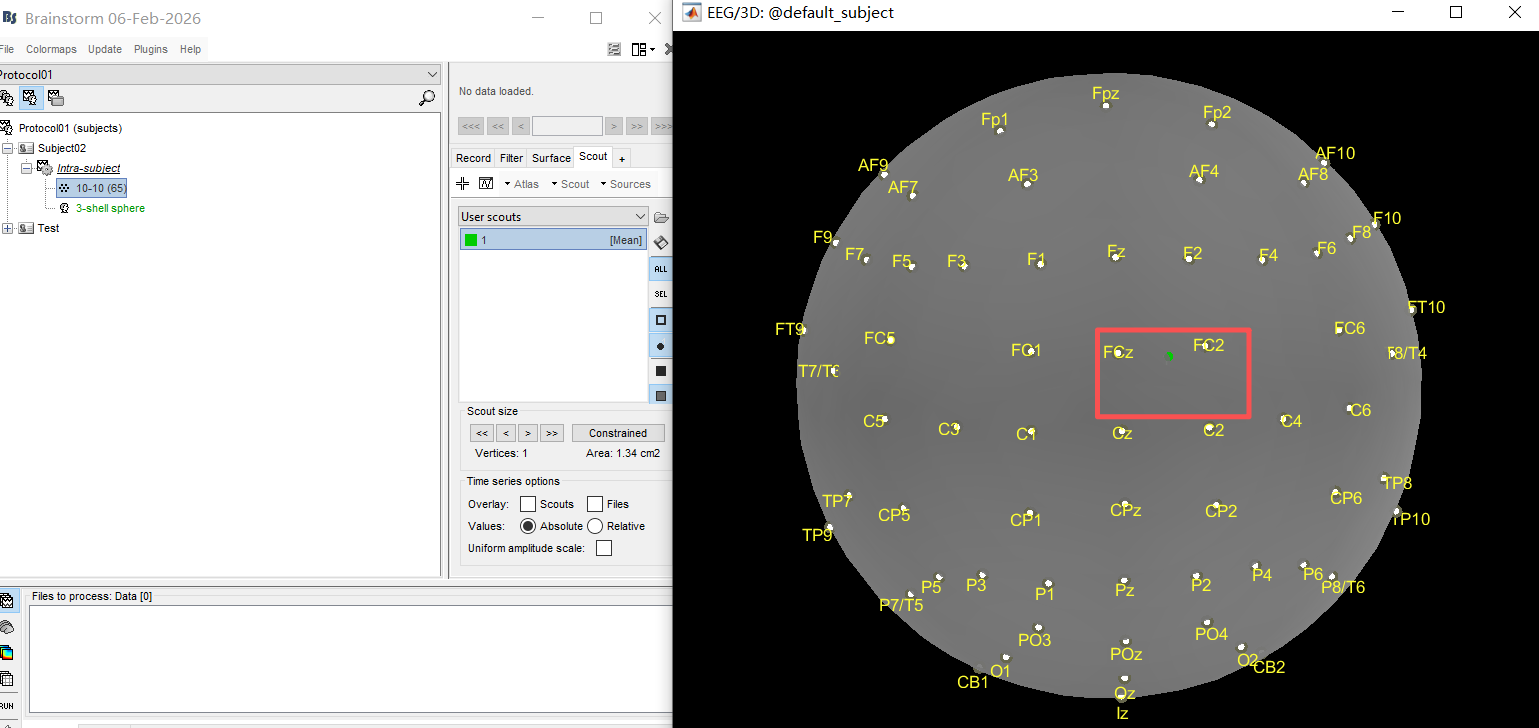
but no scout here on headmodel: (whether i edit the center/radius or not, it’s not here) so I cant simulate signals 

请原谅我发了这么多帖,我尽量清楚地表达我的问题,但我是新手,每次只能放一张照片。
(Please forgive me for posting so many times. I tried my best to express my question clearly, but I am a newbie and can only post one photo at a time.)
Hi @hyde, welcome to the Brainstorm community.
There seems to be some methodological misunderstanding with the 3-shell sphere method:
The method does not require spherical surfaces.
Your Figures suggest that there has been a manual manipulation to make spherical the scalp (or head) surface , the outterskull surface , and the cortex surface . This is not needed.
The 3-shell method in Brainstorm will automatically estimate the best fit (head_radius and head_center) sphere for head, and two additional concentric spheres for the brain and skull with the radii: 0.88*head_radius and 0.93*head_radius respectively. Then using the predefined conductivities for these spheres the gain matrix for the electrodes is computed using the Berg/Sherg method for multiple layers link to the article.
As you can see, only the radius for the head sphere is needed. The other sphere radii are relative to the head one.
1 Like
You need to be careful on for which Surface the Scout is created.
Check what is the currently selected surface in the Surface tab, and select.
So when opening other figures, check that the same surface is the selected surface, then you should see its Scouts.
@hyde, as new Brainstorm user, we recommend you start by following the introduction tutorials first (section "Get started" on the tutorial page), using the example dataset that is provided. By doing so, you will get familiar with Brainstorm features, processes and jargon
https://neuroimage.usc.edu/brainstorm/Tutorials