
|
Size: 3885
Comment:
|
← Revision 56 as of 2025-09-16 00:07:14 ⇥
Size: 12485
Comment:
|
| Deletions are marked like this. | Additions are marked like this. |
| Line 1: | Line 1: |
| = PET processing in Brainstorm = ''Authors: Diellor Basha'' This describes how to import and process PET volumes to perform multimodal analyses in Brainstorm... |
= PET processing = ''Authors: Diellor Basha, Raymundo Cassani'' |
| Line 9: | Line 7: |
| Positron Emission Tomography ([[https://en.wikipedia.org/wiki/Positron_emission_tomography|PET]]) is a powerful imaging technique widely used in medical and scientific research to study metabolic and functional processes in the body. PET processing involves a series of computational and analytical steps to transform raw data into meaningful visualizations and quantitative insights. These steps ensure accurate reconstruction, correction, and analysis of PET scans, enabling researchers and clinicians to draw precise conclusions. | This tutorial describes how to process and analyze Positron Emission Tomography ([[https://en.wikipedia.org/wiki/Positron_emission_tomography|PET]]) data within Brainstorm and how to extend PET data to surface-based, multimodal analysis. It guides users through importing and pre-processing PET volumes and outlines steps for volume and surface-based analysis of cortical tracer uptake values. |
| Line 11: | Line 9: |
| This page provides an overview of the essential methods, tools, and considerations involved in PET processing, aiming to support both newcomers and experienced users in achieving optimal results. Whether you're exploring biological pathways, assessing disease progression, or validating experimental findings, understanding the fundamentals of PET processing is key to leveraging the full potential of this versatile imaging modality. | PET is a powerful imaging technique widely used in medical and scientific research to study metabolic and functional processes in the brain and body. PET processing involves a series of computational and analytical steps to transform raw data into meaningful visualizations and quantitative insights. The increasing availability of multimodal datasets that combine PET, MRI and M/EEG provide unique opportunities for integrated analysis of neurophysiology, brain structure and molecular processes mapped by PET radioligands. |
| Line 13: | Line 11: |
| <<BR>> | This page provides an overview of the essential methods, tools, and considerations involved in PET processing, aiming to support both newcomers and experienced users of Brainstorm. If you are new to Brainstorm, refer to the comprehensive introductory materials in [[http://neuroimage.usc.edu/brainstorm/Tutorials#Get_started|Brainstorm introduction tutorials]] to familiarize yourself with the layout and workflow in Brainstorm. === Method Overview === Brainstorm capabilities for PET support: importing, processing, registering, visualizing, and analyzing PET data. Brainstorm PET functionality and workflow are designed to facilitate the analysis of multimodal neuroimaging data by allowing the user to co-analyze MEG, PET and MRI-derived data. Multi-frame (4D) PET volumes are realigned during import and aggregated over time from the 4D image (i.e. across `n` frames) to obtain a single 3D volume for co-registration with the subject’s structural MRI. The aggregated and co-registered 3D volume is then masked and rescaled to obtain voxel-wise standardized uptake value ratios (SUVR) which are then projected to the cortical surface. == Requirements == '''Prerequisites''': * '''Brainstorm Installation''': Ensure you have a working copy of Brainstorm installed on your computer. * '''SPM12 (Statistical Parametric Mapping): '''required for realignment of dynamic (4D) PET volumes and co-registration of PET with MRI. This can be installed as [[https://neuroimage.usc.edu/brainstorm/Tutorials/Plugins|Brainstorm plugin]] * '''Download the dataset:''' Go to the [[https://neuroimage.usc.edu/bst/download.php|Brainstorm Download page]], and download the file: `tutorial_pet_processing.zip.` === Files in dataset === '''tutorial_pet_processing'''/ * '''anatomy'''/: Result of the FreeSurfer 7.4.1 segmentation for Subject01 structural MRI (`anatomy/mri/T1.mgz`). See * [[https://neuroimage.usc.edu/brainstorm/Tutorials/LabelFreeSurfer|Using Freesurfer]] for more details about computing Freesurfer reconstructions from Brainstorm. * '''pet'''/: PET data for Subject01 * '''18FNAV4694.nii.gz''': Raw PET data taken over 6 acquisition frames, with uptake values for beta-amyloid tracer 18FNAV4694 * '''18Fflortaucipir.nii.gz''': Raw PET data taken over 4 acquisition frames, with uptake values for tau tracer 18Fflortaucipir |
| Line 16: | Line 34: |
| * Start Brainstorm * Select the menu '''File > Create new protocol'''. Name it "'''XXXXXX'''" and select the options: <<BR>>"'''No, use individual anatomy'''",<<BR>>"'''No, use one channel file per acquisition run'''". |
* Start Brainstorm * Select the menu '''File > Create new protocol'''. Name it "'''TutorialPET'''" and select the options: <<BR>>"'''No, use individual anatomy'''",<<BR>>"'''No, use one channel file per acquisition run'''". |
| Line 21: | Line 39: |
| * Right-click on the '''XXXXXX''' top node > '''New subject''' > '''Subject01'''.<<BR>>Keep the default options you defined for the protocol. | * Right-click on the '''pet_processing''' top node > '''New subject''' > '''Subject01'''.<<BR>>Keep the default options you defined for the protocol. |
| Line 23: | Line 43: |
| * Right-click on the subject node > '''Import MRI'''.<<BR>>Set the file format: '''MRI: NIfTI-1 (*.nii;*.nii.gz)???'''.<<BR>>Select: '''???????.nii''' | |
| Line 25: | Line 44: |
| * The MRI viewer opens automatically. Click on "[[http://neuroimage.usc.edu/brainstorm/Tutorials/ImportAnatomy#MNI_normalization|Click here to compute MNI normalization]]", option "'''maff8'''". | * Import the Subject MRI and its precomputed FreeSurfer segmentation. Right-click on the subject node > '''Import anatomy folder (auto)''', choose '''Freesurfer + Volume atlases + Thickness''' from the file type menu and select the precomputed '''`anatomy`''' folder. This will import the structural MRI (MRI T1), the available anatomical parcellations and the surfaces obtained with FreeSurfer. |
| Line 27: | Line 46: |
| * Click on '''Save''' to close the MRI viewer. New node named '''preMRI''' is created.<<BR>><<BR>> | . {{attachment:import_mrifs.png||width="30%"}} |
| Line 29: | Line 48: |
| {{attachment:3.png}} | == Import and pre-process the PET volume == The MRI volume will be used as the anatomical reference for this subject. We will now import two PET scans acquire from the same subject and process the raw PET data. <<BR>> |
| Line 31: | Line 51: |
| === PET volume === The MRI volume above will be used as the anatomical reference for this subject. We will now import a PET scan done on the same subject. In this dataset, PET scan corresponds to XXXX. |
{{attachment:pet_method_import.png||width="90%"}} |
| Line 34: | Line 53: |
| * Right-click on the subject node > '''Import PET'''.<<BR>>Select: '''????.nii''' | * Right-click on the subject node > '''Import PET'''.<<BR>>Select: '''18FNAV4694.nii.gz''' |
| Line 36: | Line 56: |
| * Choose the import options for PET <<BR>> |
|
| Line 39: | Line 57: |
| {{attachment:pet_import_opts.png}} | * Choose the import options for PET <<BR>> |
| Line 41: | Line 59: |
| * '''Align frames''': Description on what happens, method, etc <<BR>> Check this option |
* '''Align frames''': For multi-frame (dynamic) volumes, realignment is recommended before aggregation and registration to MRI. Brainstorm checks automatically whether the imported file is a 3D (single-frame) or 4D (multi-frame) scan and makes available the option for realignment accordingly (greyed out if single-frame). In this step, individual PET frames are first aligned to a chosen target frame (the first) and then realigned in a second pass to the mean of all frames available in the volume. In this case, '''18FNAV4694.nii.gz''' is a 4D (dynamic) structure, containing a PET scan with '''6''' acquisition frames, taken minutes apart. <<BR>> Check this option |
| Line 44: | Line 61: |
| * '''Apply smoothing''': Description <<BR>> Check this option, and set FWHM to '''XX mm''' |
* '''Apply smoothing''': This option applies Gaussian smoothing to uptake values in each PET frame before frames are aggregated into a single 3D volume. The size of the smoothing parameter is the full width at half maximum (FHWM) of the smoothing function, given in mm. Smoothing at this stage can exacerbate partial fraction effects, whereby non-specific tracer binding from white matter and low uptake in cerebrospinal fluid (CSF) can contaminate the cortical signal. In some cases with low-resolution PET scans, smoothing at this step may be necessary to improve registration to MRI. We recommend skipping smoothing at this stage and smoothing instead on the surface at later steps during surface-based processing described below. <<BR>> Uncheck this option or set FWHM to '''0 mm.''' |
| Line 47: | Line 63: |
| * '''Aggregate frames''': Description <<BR>> Select '''mean''' |
* '''Aggregate frames''': This option lets you choose how the realigned frames will be aggregated to produce the time-aggregated, single-frame 3D volume. <<BR>> Select '''mean''' |
| Line 50: | Line 65: |
| * '''Register to MRI using:''': Description <<BR>> Check this option, and set method to '''SPM''' |
* '''Register to MRI using: ''' The PET volume to be imported needs to be registered to the reference MRI in order to align tracer uptake values to the corresponding anatomy. It is a necessary step for both volume and surface-based analysis of tracer uptake. Refer to the [[https://neuroimage.usc.edu/brainstorm/seeg/ct2mri#Volume_coregistration|CT2MRI tutorial]] for detailed explanation of the two co-registration methods: SPM and MNI. <<BR>> Check this option, and set method to '''SPM''' |
| Line 53: | Line 67: |
| * '''Reslice volume:''': Description <<BR>> Check this option |
* '''Reslice volume: '''This option resamples the PET volume to match the slice sampling of the reference MRI. It is a necessary step for overlaying PET slices to their on the reference MRI. If you know that your imported PET volume is already co-registered and resliced to the reference MRI, select No for this option. For the current dataset, we will reslice the volume. <<BR>> Check this option <<BR>> . {{attachment:pet_import_workflow2.png||width="90%"}} |
| Line 58: | Line 73: |
| You can also decide to not perform any of these actions, and perform them once the PET volume is imported. IMAGE OF CONTEXT MENUS, for frame alignment and co-registration | You can also decide to not perform any of these actions ('''realign''' and '''aggregate frames''', and '''co-register''' and '''reslice''' the imported volume), and perform them once the PET volume is imported using the PET volume context menus: <<BR>> {{attachment:pet_process_context_menu_lowres.png||width="70%"}} }}} |
| Line 60: | Line 77: |
| }}} | Once processing and importing is completed, the file '''18FNAV4694_spm_realign_mean_spm_reslice''' will appear in the database, and the MRI viewer will open automatically, displaying the PET volume as an overlay over the reference MRI. The default [[https://neuroimage.usc.edu/brainstorm/Tutorials/Colormaps|colormap]] of the PET overlay can be modified by right-clicking on the figure and selecting from the popup menu. Use the viewer to explore the PET data and to verify that co-registration and pre-processing was done accurately. In addition, use the '''Amplitude''' slider in the Surface panel, as it thresholds the displayed values. |
| Line 62: | Line 79: |
| Repeat the above steps for the second PET file '''18Fflortaucipir.nii.gz, ''', this PET volume contains 4 acquisition frames. | |
| Line 63: | Line 81: |
| == Additional documentation == | == Masking and rescaling PET == The imported PET volumes will now appear in the Brainstorm tree view under its own PET icon with PET-specific context menus. To compute the [[https://en.wikipedia.org/wiki/Standardized_uptake_value|standardized uptake value ratio]] (SUVR), we will rescale PET uptake values with respect to a reference region such as the cerebellum. As this is a ROI-based method, accurate parcellation of the volume is required before proceeding. In this dataset, the anatomical parcellation is already computed with FreeSurfer. However, it is possible to compute tissue segmenation and anatomical parcellations from the MRI file within Brainstorm. For detailed tutorials, refer to MRI segmentation in https://neuroimage.usc.edu/brainstorm/Tutorials/#Advanced_tutorials <<BR>> {{attachment:pet_method_process.png||width="80%"}} * Go to the '''Anatomy view''' * Right-click on the '''18Fflortaucipir_spm_realign_mean_spm_reslice''' node > '''PET processing''' > '''Compute SUVR'''. * '''Atlas''': These are anatomical parcellations, aka atlases, available for the reference MRI. Select '''ASEG '''to use the FreeSurfer parcellation. * '''Reference ROI''': This is the brain region from the atlas that will be used as a reference for rescaling PET values to obtain the SUVR. Select '''Cerebellum''' from the drop down menu. * '''Apply mask''': The rescaled PET data can be masked to restrict PET values to a chosen ROI mask. Select '''Cortex''' from the drop down menu. * '''Project to surface''': This option allows you to project cortical PET values to the default cortical surface of the Subject for surface-based analysis. . {{attachment:pet_process_workflow.png||width="100%"}} == Surface-based analysis == The surface-based submodule enables the projection of volumetric PET data onto the cortical surface, facilitating vertex-wise analysis in a common subject framework. Surface-based analysis of PET is based on the '''''tess2mri ''interpolation matrix''' computed by Brainstorm. This matrix establishes weights for volumetric MRI voxels contributing to specific vertices on the cortical surface. Weights range between 0 (no contribution) and 1 (full contribution), enabling a smooth mapping of voxel coordinates to the cortical surface. Given that PET data are co-registered to the MRI, PET voxel intensity values are scaled by the interpolation weights, resulting in a weighted projection of PET values to the nearest vertex. {{attachment:depth_weighted_mapping.png ||width="75%"}} == Partial Volume Correction == |
| Line 68: | Line 108: |
| * Nolte G, Bai O, Wheaton L, Mari Z, Vorbach S, Hallett M. <<BR>> [[https://doi.org/10.1016/j.clinph.2004.04.029|Identifying true brain interaction from EEG data using the imaginary part of coherency]]. <<BR>> Clinical Neurophysiology. 2004 Oct;115(10):2292–307. | * [[https://surfer.nmr.mgh.harvard.edu/fswiki/PetSurfer|PET Analysis with FreeSurfer]] * [[https://andysbrainbook.readthedocs.io/en/latest/FreeSurfer/FS_ShortCourse/AppendixB_PETSurfer.html|PET Analysis with FreeSurfer Tutorial]] |
| Line 71: | Line 112: |
| * Overlaying PET on cortex: [[https://neuroimage.usc.edu/forums/t/30241|https://neuroimage.usc.edu/forums/t/30241]] | * Overlaying PET on cortex: https://neuroimage.usc.edu/forums/t/30241 == Scripting == The following script from the Brainstorm distribution reproduces the analysis presented in this tutorial page: [[https://github.com/brainstorm-tools/brainstorm3/blob/master/toolbox/script/tutorial_.m|brainstorm3/toolbox/script/tutorial_pet_processing.m]] <<HTML(<div style="border:1px solid black; background-color:#EEEEFF; width:720px; height:500px; overflow:scroll; padding:10px; font-family: Consolas,Menlo,Monaco,Lucida Console,Liberation Mono,DejaVu Sans Mono,Bitstream Vera Sans Mono,Courier New,monospace,sans-serif; font-size: 13px; white-space: pre;">)>><<EmbedContent("https://neuroimage.usc.edu/bst/viewcode.php?f=tutorial_pet_processing.m")>><<HTML(</div >)>> <<EmbedContent(http://neuroimage.usc.edu/bst/get_feedback.php?Tutorials/PetProcessing)>> |
PET processing
Authors: Diellor Basha, Raymundo Cassani
Contents
Introduction
This tutorial describes how to process and analyze Positron Emission Tomography (PET) data within Brainstorm and how to extend PET data to surface-based, multimodal analysis. It guides users through importing and pre-processing PET volumes and outlines steps for volume and surface-based analysis of cortical tracer uptake values.
PET is a powerful imaging technique widely used in medical and scientific research to study metabolic and functional processes in the brain and body. PET processing involves a series of computational and analytical steps to transform raw data into meaningful visualizations and quantitative insights. The increasing availability of multimodal datasets that combine PET, MRI and M/EEG provide unique opportunities for integrated analysis of neurophysiology, brain structure and molecular processes mapped by PET radioligands.
This page provides an overview of the essential methods, tools, and considerations involved in PET processing, aiming to support both newcomers and experienced users of Brainstorm. If you are new to Brainstorm, refer to the comprehensive introductory materials in Brainstorm introduction tutorials to familiarize yourself with the layout and workflow in Brainstorm.
Method Overview
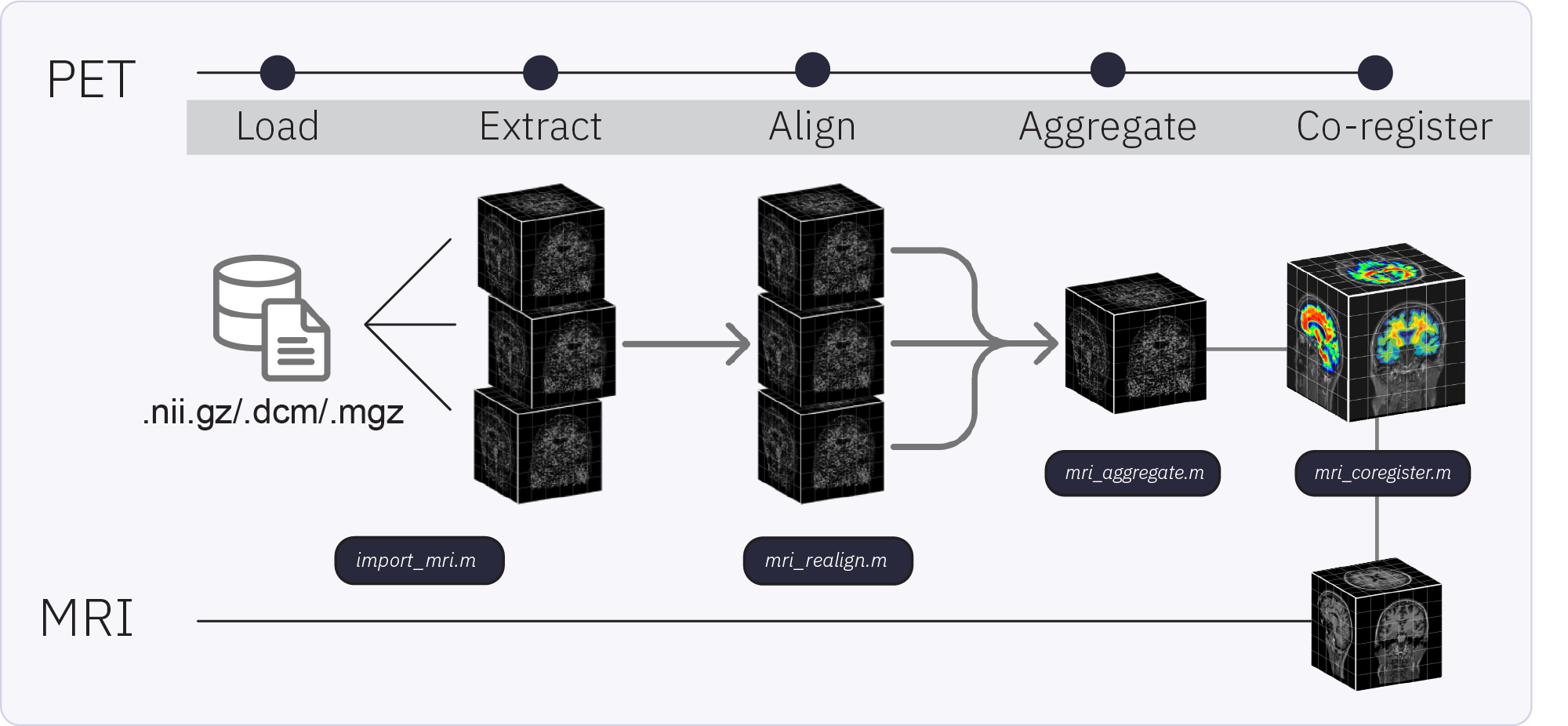
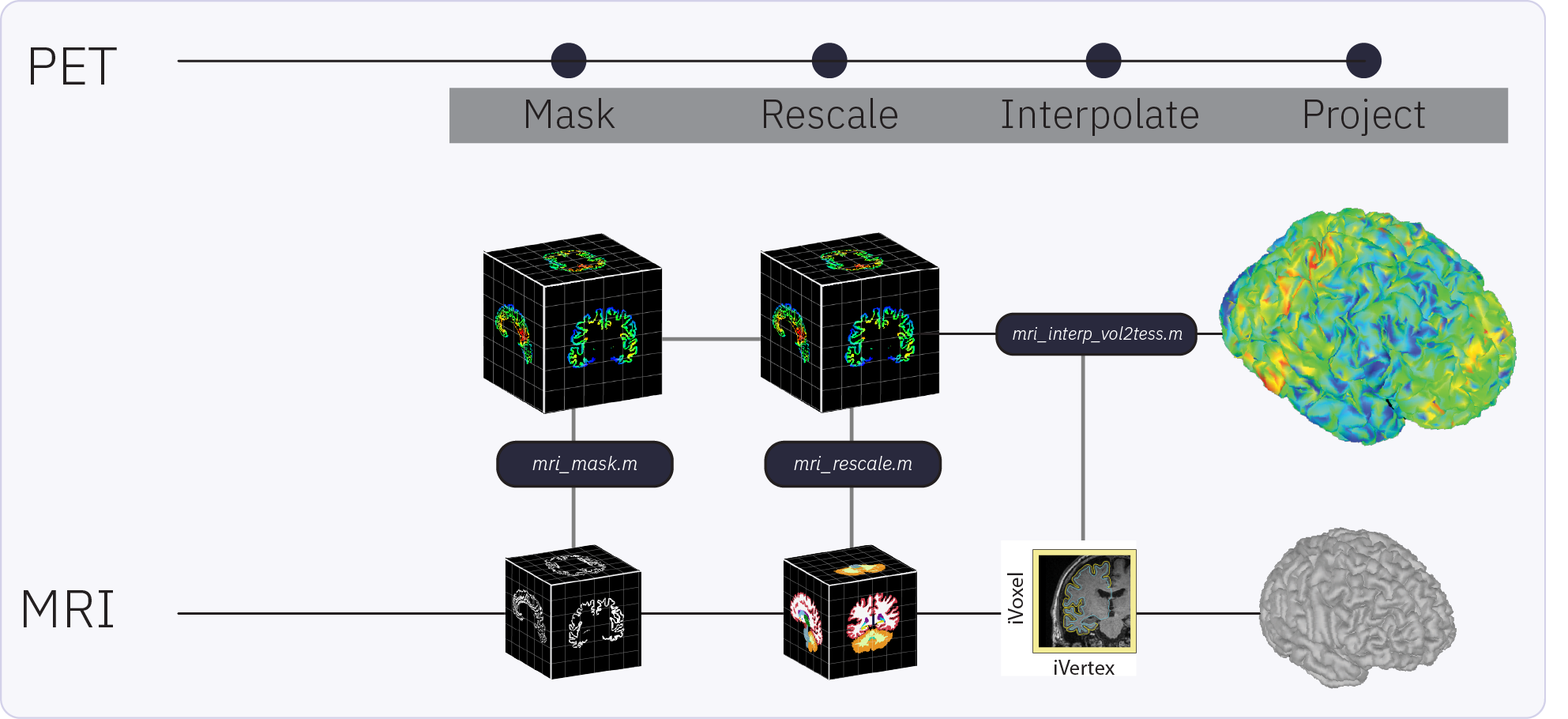
Brainstorm capabilities for PET support: importing, processing, registering, visualizing, and analyzing PET data. Brainstorm PET functionality and workflow are designed to facilitate the analysis of multimodal neuroimaging data by allowing the user to co-analyze MEG, PET and MRI-derived data. Multi-frame (4D) PET volumes are realigned during import and aggregated over time from the 4D image (i.e. across n frames) to obtain a single 3D volume for co-registration with the subject’s structural MRI. The aggregated and co-registered 3D volume is then masked and rescaled to obtain voxel-wise standardized uptake value ratios (SUVR) which are then projected to the cortical surface.
Requirements
Prerequisites:
Brainstorm Installation: Ensure you have a working copy of Brainstorm installed on your computer.
SPM12 (Statistical Parametric Mapping): required for realignment of dynamic (4D) PET volumes and co-registration of PET with MRI. This can be installed as Brainstorm plugin
Download the dataset:
Go to the Brainstorm Download page, and download the file: tutorial_pet_processing.zip.
Files in dataset
tutorial_pet_processing/
anatomy/: Result of the FreeSurfer 7.4.1 segmentation for Subject01 structural MRI (anatomy/mri/T1.mgz). See * Using Freesurfer for more details about computing Freesurfer reconstructions from Brainstorm.
pet/: PET data for Subject01
18FNAV4694.nii.gz: Raw PET data taken over 6 acquisition frames, with uptake values for beta-amyloid tracer 18FNAV4694
18Fflortaucipir.nii.gz: Raw PET data taken over 4 acquisition frames, with uptake values for tau tracer 18Fflortaucipir
Import the anatomy
- Start Brainstorm
Select the menu File > Create new protocol. Name it "TutorialPET" and select the options:
"No, use individual anatomy",
"No, use one channel file per acquisition run".
Reference MRI
Go to the Anatomy view
Right-click on the pet_processing top node > New subject > Subject01.
Keep the default options you defined for the protocol.Switch to the Anatomy view of the protocol.
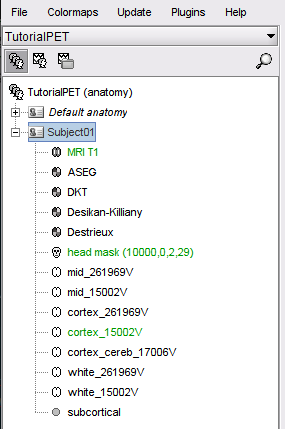
Import the Subject MRI and its precomputed FreeSurfer segmentation. Right-click on the subject node > Import anatomy folder (auto), choose Freesurfer + Volume atlases + Thickness from the file type menu and select the precomputed anatomy folder. This will import the structural MRI (MRI T1), the available anatomical parcellations and the surfaces obtained with FreeSurfer.
Import and pre-process the PET volume
The MRI volume will be used as the anatomical reference for this subject. We will now import two PET scans acquire from the same subject and process the raw PET data.
Right-click on the subject node > Import PET.
Select: 18FNAV4694.nii.gzChoose Yes for the transformation for MRI orientation.
Choose the import options for PET
Align frames: For multi-frame (dynamic) volumes, realignment is recommended before aggregation and registration to MRI. Brainstorm checks automatically whether the imported file is a 3D (single-frame) or 4D (multi-frame) scan and makes available the option for realignment accordingly (greyed out if single-frame). In this step, individual PET frames are first aligned to a chosen target frame (the first) and then realigned in a second pass to the mean of all frames available in the volume. In this case, 18FNAV4694.nii.gz is a 4D (dynamic) structure, containing a PET scan with 6 acquisition frames, taken minutes apart.
Check this optionApply smoothing: This option applies Gaussian smoothing to uptake values in each PET frame before frames are aggregated into a single 3D volume. The size of the smoothing parameter is the full width at half maximum (FHWM) of the smoothing function, given in mm. Smoothing at this stage can exacerbate partial fraction effects, whereby non-specific tracer binding from white matter and low uptake in cerebrospinal fluid (CSF) can contaminate the cortical signal. In some cases with low-resolution PET scans, smoothing at this step may be necessary to improve registration to MRI. We recommend skipping smoothing at this stage and smoothing instead on the surface at later steps during surface-based processing described below.
Uncheck this option or set FWHM to 0 mm.Aggregate frames: This option lets you choose how the realigned frames will be aggregated to produce the time-aggregated, single-frame 3D volume.
Select meanRegister to MRI using: The PET volume to be imported needs to be registered to the reference MRI in order to align tracer uptake values to the corresponding anatomy. It is a necessary step for both volume and surface-based analysis of tracer uptake. Refer to the CT2MRI tutorial for detailed explanation of the two co-registration methods: SPM and MNI.
Check this option, and set method to SPMReslice volume: This option resamples the PET volume to match the slice sampling of the reference MRI. It is a necessary step for overlaying PET slices to their on the reference MRI. If you know that your imported PET volume is already co-registered and resliced to the reference MRI, select No for this option. For the current dataset, we will reslice the volume.
Check this option
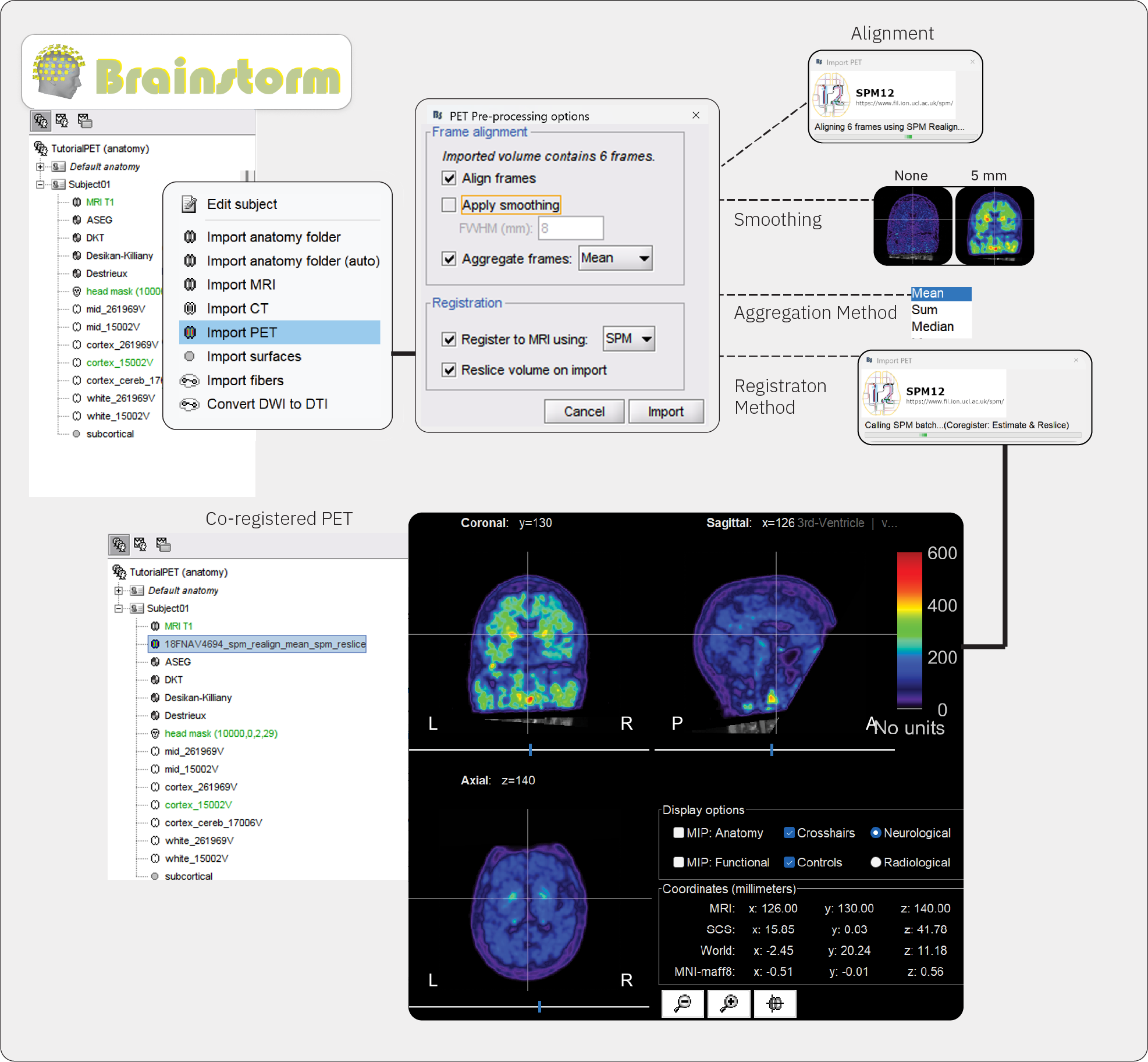
You can also decide to not perform any of these actions (realign and aggregate frames, and co-register and reslice the imported volume), and perform them once the PET volume is imported using the PET volume context menus:

Once processing and importing is completed, the file 18FNAV4694_spm_realign_mean_spm_reslice will appear in the database, and the MRI viewer will open automatically, displaying the PET volume as an overlay over the reference MRI. The default colormap of the PET overlay can be modified by right-clicking on the figure and selecting from the popup menu. Use the viewer to explore the PET data and to verify that co-registration and pre-processing was done accurately. In addition, use the Amplitude slider in the Surface panel, as it thresholds the displayed values.
Repeat the above steps for the second PET file 18Fflortaucipir.nii.gz, , this PET volume contains 4 acquisition frames.
Masking and rescaling PET
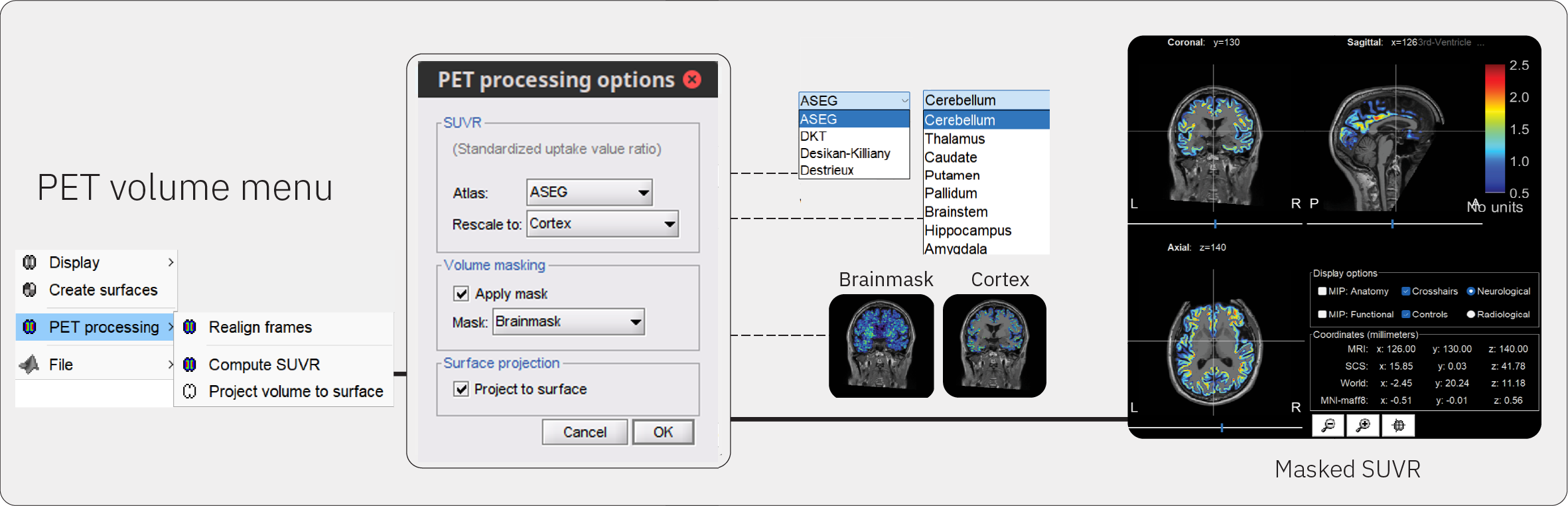
The imported PET volumes will now appear in the Brainstorm tree view under its own PET icon with PET-specific context menus. To compute the standardized uptake value ratio (SUVR), we will rescale PET uptake values with respect to a reference region such as the cerebellum. As this is a ROI-based method, accurate parcellation of the volume is required before proceeding. In this dataset, the anatomical parcellation is already computed with FreeSurfer. However, it is possible to compute tissue segmenation and anatomical parcellations from the MRI file within Brainstorm. For detailed tutorials, refer to MRI segmentation in https://neuroimage.usc.edu/brainstorm/Tutorials/#Advanced_tutorials
Go to the Anatomy view
Right-click on the 18Fflortaucipir_spm_realign_mean_spm_reslice node > PET processing > Compute SUVR.
Atlas: These are anatomical parcellations, aka atlases, available for the reference MRI. Select ASEG to use the FreeSurfer parcellation.
Reference ROI: This is the brain region from the atlas that will be used as a reference for rescaling PET values to obtain the SUVR. Select Cerebellum from the drop down menu.
Apply mask: The rescaled PET data can be masked to restrict PET values to a chosen ROI mask. Select Cortex from the drop down menu.
Project to surface: This option allows you to project cortical PET values to the default cortical surface of the Subject for surface-based analysis.
Surface-based analysis
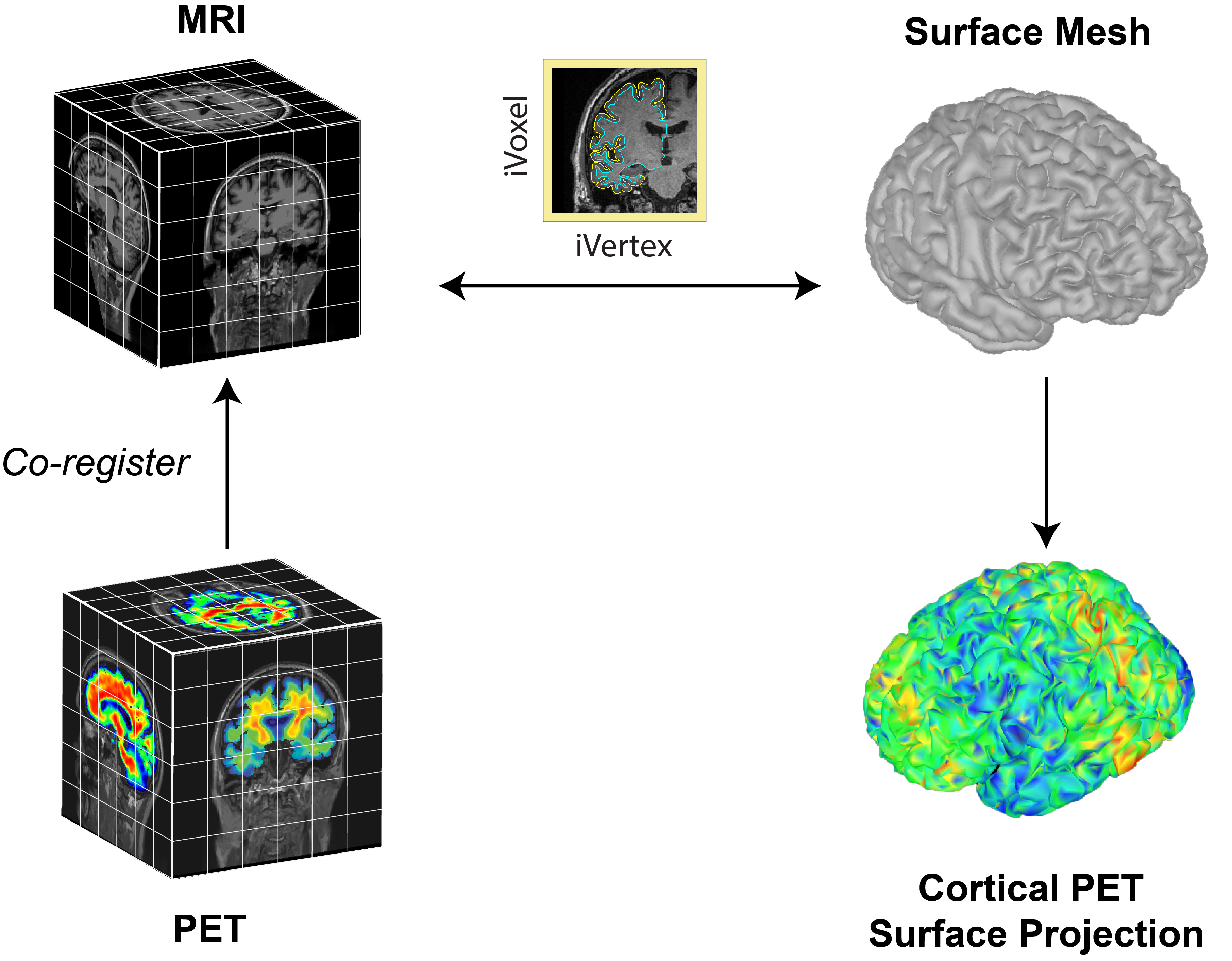
The surface-based submodule enables the projection of volumetric PET data onto the cortical surface, facilitating vertex-wise analysis in a common subject framework. Surface-based analysis of PET is based on the tess2mri interpolation matrix computed by Brainstorm. This matrix establishes weights for volumetric MRI voxels contributing to specific vertices on the cortical surface. Weights range between 0 (no contribution) and 1 (full contribution), enabling a smooth mapping of voxel coordinates to the cortical surface. Given that PET data are co-registered to the MRI, PET voxel intensity values are scaled by the interpolation weights, resulting in a weighted projection of PET values to the nearest vertex.
Partial Volume Correction
Related tutorials
Articles
Forum discussions
Overlaying PET on cortex: https://neuroimage.usc.edu/forums/t/30241
Scripting
The following script from the Brainstorm distribution reproduces the analysis presented in this tutorial page: brainstorm3/toolbox/script/tutorial_pet_processing.m