|
Size: 1530
Comment:
|
Size: 5950
Comment:
|
| Deletions are marked like this. | Additions are marked like this. |
| Line 4: | Line 4: |
| This tutorial describes how to delineate resection volume from a post-op MRI using the module [[https://github.com/ajoshiusc/auto_resection_mask/tree/brainstorm-plugin|resection-identification]] that has been integrated as a Brainstorm [[https://neuroimage.usc.edu/brainstorm/Tutorials/Plugins|plugin]] | This tutorial describes how to delineate resection volume from a post-op MRI using the module [[https://github.com/ajoshiusc/auto_resection_mask/tree/brainstorm-plugin|resection-identification]] that has been integrated as a [[https://neuroimage.usc.edu/brainstorm/Tutorials/Plugins|Brainstorm plugin]]. |
| Line 12: | Line 12: |
| == Introduction == | == Introduction == The module [[https://github.com/ajoshiusc/auto_resection_mask/tree/brainstorm-plugin|resection-identification]] can coregister pre- and post- op MRI's of subjects that underwent surgical resection and identify resection as a volumetric mask. This volumetric mask can be imported as an MRI parcellation (aka MRI atlas) in subject space, and then used to generate a surface representation. |
| Line 19: | Line 20: |
| * Go to the Brainstorm [[http://neuroimage.usc.edu/bst/download.php|Download]] page * Download the file: '''tutorial_resection_identification.zip'''. * Unzip it into a folder that is not located in any Brainstorm directories (i.e., not in the Brainstorm program folder or database folder). |
|
| Line 21: | Line 25: |
| '''tutorial_resection_identification'''/ * '''anatomy'''/: Anatomy data * '''preop.nii.gz''' : Raw pre-op MRI (in NIfTI-1 format), * '''postop.nii.gz''': Raw post-op MRI (in NIfTI-1 format) == Import the anatomy == * Start Brainstorm. * Select the menu: '''File > Create new protocol'''. Name it '''!TutorialResectionIdentification''' and select the options: <<BR>>"'''No, use individual anatomy'''",<<BR>>"'''No, use one channel file per acquisition run'''". === Pre-op MRI === * Go to the '''Anatomy''' view * Right click on top node '''!TutorialResectionIdentification''' > '''New subject''' > '''Subject01'''. <<BR>>Keep the default options you defined for the protocol. * Right-click on the subject node > '''Import MRI''':<<BR>>Set the file format: "MRI: NIfTI-1 (*.nii;*.nii.gz)"<<BR>>Select: '''tutorial_resection_identification/anatomy/preop.nii.gz''' * Click on "[[http://neuroimage.usc.edu/brainstorm/Tutorials/ImportAnatomy#MNI_normalization|Click here to compute MNI normalization]]", option "'''maff8'''". It computes a linear transformation between the subject space and the MNI ICBM152 space. <<BR>><<BR>> {{attachment:1_mni_norm.png}} * Click on '''Save''' to close the MRI viewer. === Post-op MRI === * The pre-op MRI will be used as the anatomical reference for this subject. We will now import a second scan done after surgery, on which we can see the resected region. * Right-click on the subject node > '''Import MRI''':<<BR>>Select: '''tutorial_resection_identification/anatomy/preop.nii.gz''' * How to register the new volume? '''Ignore'''<<BR>>Just import the raw post-op MRI. See the section [[https://neuroimage.usc.edu/brainstorm/seeg/ct2mri#Volume_coregistration|Volume coregistration]] for more details on this option. * Reslice the volume? '''Yes'''<<BR>>This will rewrite the volume with the orientation and resolution of the pre-op MRI, so that the two volumes can be overlaid in the MRI viewer. <<BR>><<BR>> {{attachment:3_postop.png||width="150"}} * The MRI viewer opens automatically, showing the post-op volume as a colored layer on top of the previous volume. |
|
| Line 23: | Line 50: |
| * Right click on the '''postop_reslice''' MRI > '''MRI segmentation''' > '''Resection identification'''. <<BR>><<BR>> {{attachment:2_resec_id_gui.png||width="400"}} * The resection identification process executes, and after its completion, the following get generated: * '''preop_resection_mask''' : The post-op MRI resection mask warped in the pre-op MRI space. * '''postop_resection_mask''': The post-op MRI resection mask. * '''preop_resection''': The surface rendering of '''preop_resection_mask'''. * '''postop_resection''': The surface rendering of '''postop_resection_mask'''. * '''postop_coreg_preop''': The post-op MRI coregistered non-linearly to the pre-op MRI. <<BR>><<BR>> {{attachment:4_after_resec_gui.png||width="200"}} * The '''preop_resection_mask''' (left) and the '''preop_resection''' surface (right) overlaid on the '''postop_coreg_preop''' MRI volume, each showing the resection can be seen below. <<BR>><<BR>> {{attachment:5_final.png}} * Instead of using the GUI, you can use the '''Process''' tab to perform resection identification. * After importing the pre- and post-op MRIs as per the section above, click on '''Process1''' > '''RUN'''. * Click on '''Import''' > '''Import anatomy''' > '''Resection identification'''. <<BR>><<BR>> {{attachment:6_process1.png||width="600"}} * Set the Subject name: '''Subject01''' and post-op MRI name: '''postop_reslice'''. Click '''Run'''. The process will run and after completion generates the same volumes and surfaces as above. <<BR>><<BR>> {{attachment:7_process1.png||width="400"}} |
Resection identification
Authors: Chinmay Chinara, Anand Joshi
This tutorial describes how to delineate resection volume from a post-op MRI using the module resection-identification that has been integrated as a Brainstorm plugin.
Please note that this tutorial is intended for users already familiar with Brainstorm. It does not provide detailed explanations of the software's interface or theoretical foundations.For comprehensive introductory material, refer to the Brainstorm introduction tutorials.
NOT FOR CLINICAL USE:
The methods and software implementations presented in this tutorial have not been certified as medical devices. They are intended for research purposes only and should not be used for clinical decision-making.
== Introduction == The module resection-identification can coregister pre- and post- op MRI's of subjects that underwent surgical resection and identify resection as a volumetric mask. This volumetric mask can be imported as an MRI parcellation (aka MRI atlas) in subject space, and then used to generate a surface representation.
Download and installation
Prerequisites:
Brainstorm Installation: Ensure you have a working copy of Brainstorm installed on your computer.
Familiarity with Brainstorm: This tutorial assumes that you have completed all the Brainstorm introduction tutorials and are comfortable with its interface and basic functionalities.
Download the dataset:
Go to the Brainstorm Download page
Download the file: tutorial_resection_identification.zip.
- Unzip it into a folder that is not located in any Brainstorm directories (i.e., not in the Brainstorm program folder or database folder).
Files in dataset
tutorial_resection_identification/
anatomy/: Anatomy data
preop.nii.gz : Raw pre-op MRI (in NIfTI-1 format),
postop.nii.gz: Raw post-op MRI (in NIfTI-1 format)
Import the anatomy
- Start Brainstorm.
Select the menu: File > Create new protocol. Name it TutorialResectionIdentification and select the options:
"No, use individual anatomy",
"No, use one channel file per acquisition run".
Pre-op MRI
Go to the Anatomy view
Right click on top node TutorialResectionIdentification > New subject > Subject01.
Keep the default options you defined for the protocol.Right-click on the subject node > Import MRI:
Set the file format: "MRI: NIfTI-1 (*.nii;*.nii.gz)"
Select: tutorial_resection_identification/anatomy/preop.nii.gzClick on "Click here to compute MNI normalization", option "maff8". It computes a linear transformation between the subject space and the MNI ICBM152 space.

Click on Save to close the MRI viewer.
Post-op MRI
- The pre-op MRI will be used as the anatomical reference for this subject. We will now import a second scan done after surgery, on which we can see the resected region.
Right-click on the subject node > Import MRI:
Select: tutorial_resection_identification/anatomy/preop.nii.gzHow to register the new volume? Ignore
Just import the raw post-op MRI. See the section Volume coregistration for more details on this option.Reslice the volume? Yes
This will rewrite the volume with the orientation and resolution of the pre-op MRI, so that the two volumes can be overlaid in the MRI viewer.
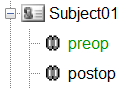
- The MRI viewer opens automatically, showing the post-op volume as a colored layer on top of the previous volume.
Resection identification
Right click on the postop_reslice MRI > MRI segmentation > Resection identification.
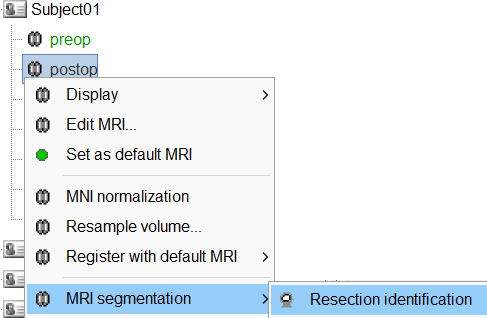
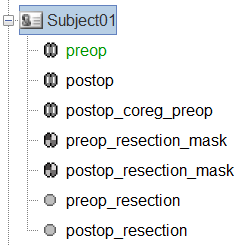
- The resection identification process executes, and after its completion, the following get generated:
preop_resection_mask : The post-op MRI resection mask warped in the pre-op MRI space.
postop_resection_mask: The post-op MRI resection mask.
preop_resection: The surface rendering of preop_resection_mask.
postop_resection: The surface rendering of postop_resection_mask.
postop_coreg_preop: The post-op MRI coregistered non-linearly to the pre-op MRI.
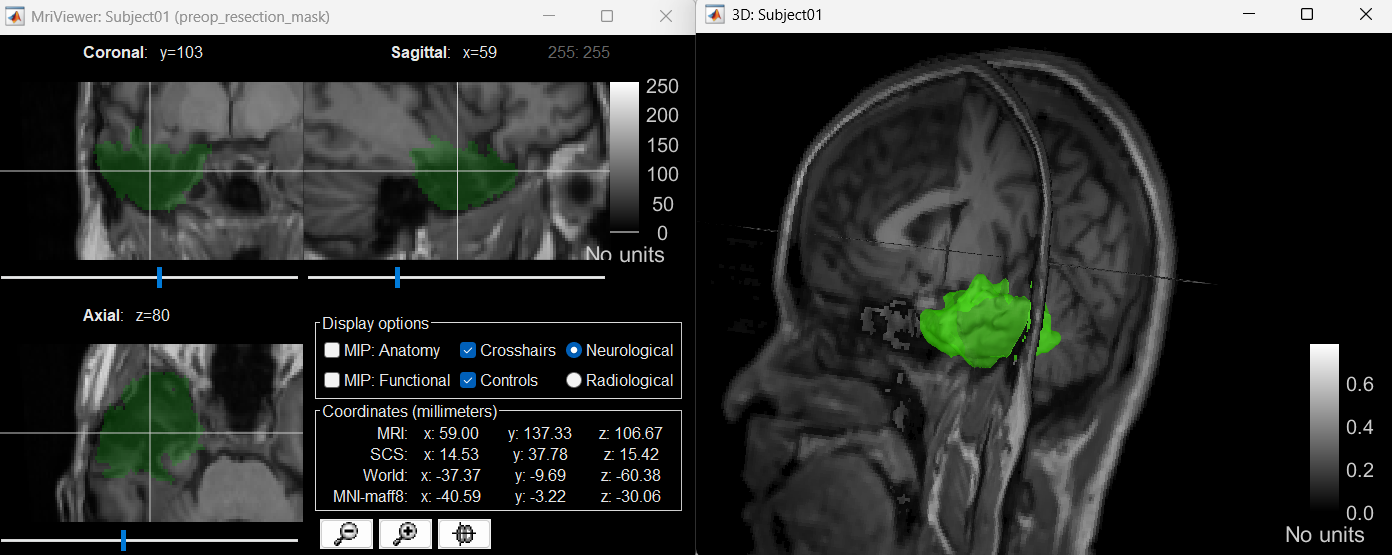
The preop_resection_mask (left) and the preop_resection surface (right) overlaid on the postop_coreg_preop MRI volume, each showing the resection can be seen below.
Instead of using the GUI, you can use the Process tab to perform resection identification.
After importing the pre- and post-op MRIs as per the section above, click on Process1 > RUN.
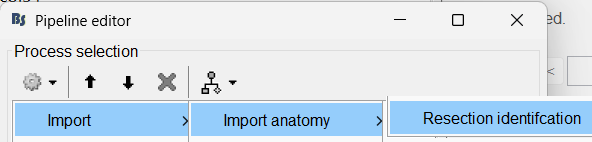
Click on Import > Import anatomy > Resection identification.
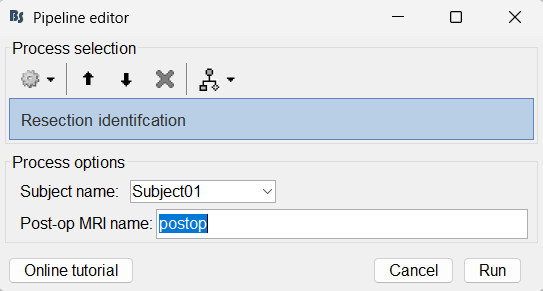
Set the Subject name: Subject01 and post-op MRI name: postop_reslice. Click Run. The process will run and after completion generates the same volumes and surfaces as above.